VS Code extension
This page is a work in progress. Content may change or be incomplete.
Your architecture now has dozens of manifests spread over a folder. To find out who reaches catalog-db, you could ask your agent to read the files and bring back an answer, or you could open file after file and search yourself. Either way, you are rebuilding the map every time. And you only learn that a rule is broken when your pipeline fails ten minutes after the push. You would rather see the architecture while you edit it, and see the problem on the line that causes it.
The ASL extension for VS Code does exactly that, and it keeps a catalog of your architecture always at hand, so there is nothing to rebuild. It adds an ASL panel to the sidebar with every resource of your architecture, and it marks errors in the editor as you type, using the same checks as the asl command.
Install
For now the extension is distributed as a .vsix file. In VS Code, open the Extensions view, choose ⋯, then Install from VSIX…, and pick the file. From a terminal:
code --install-extension asl-vscode-0.1.0.vsix
Open a folder that contains *.asl.yaml files. The ASL icon appears in the activity bar.
The ASL panel
The panel has three views. At the top of the first one, Compile architecture runs the checks on demand, and the ⓘ button opens this documentation.
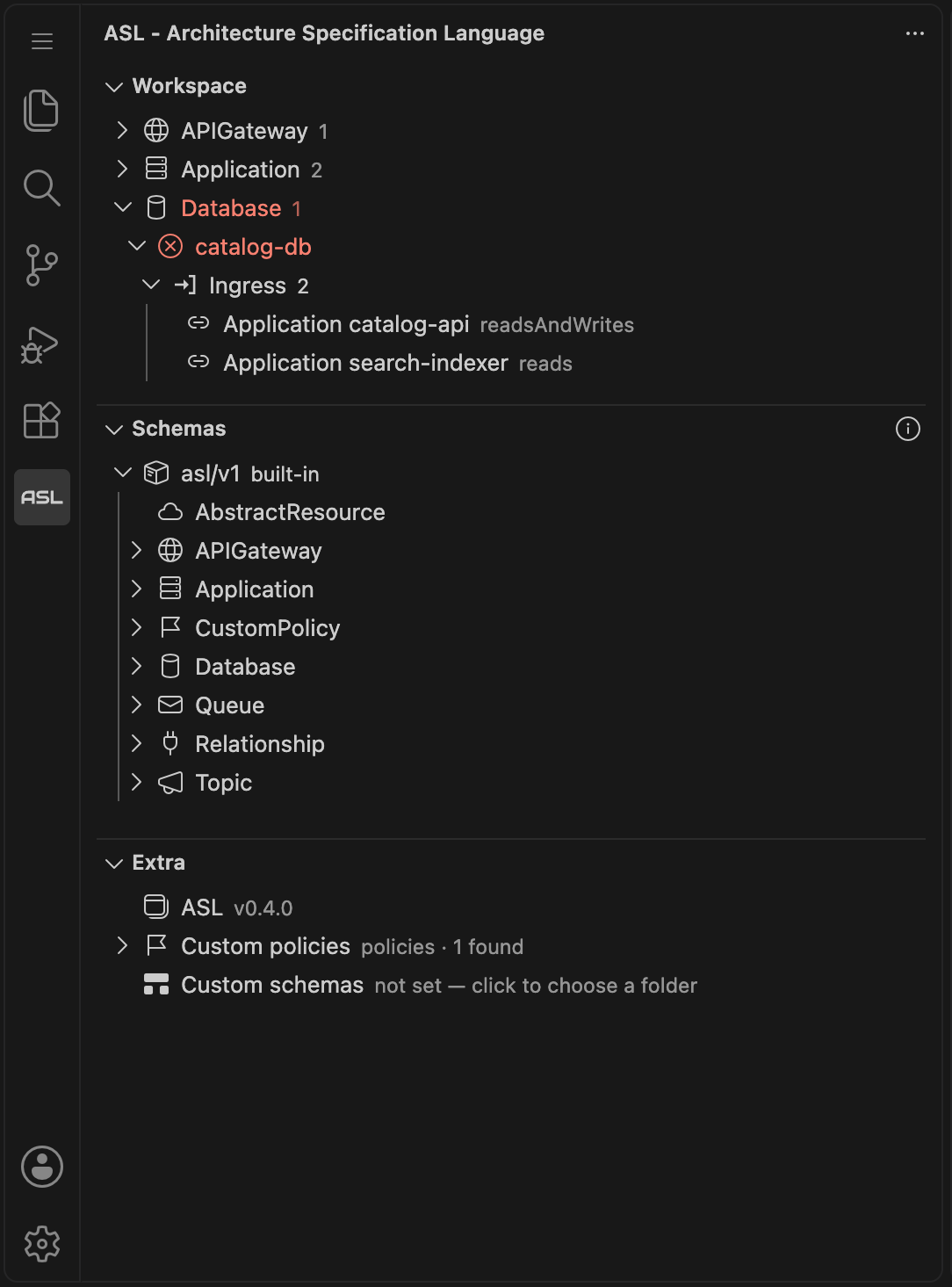
Workspace
Every manifest in the folder, grouped by kind: Application, Database, Queue... Expand a resource to see how it connects to the rest, in up to three groups:
| Group | What it lists |
|---|---|
| Ingress | Who reaches this resource, and the interfaces it exposes. |
| Egress | What this resource calls, reads, writes or publishes to. |
| Bidirectional | Interfaces that work in both directions. |
Each connection reads <Kind> <name>, followed by the connection type in a dimmed color, for example Database catalog-db readsAndWrites. Interfaces read Interface public-api followed by the protocol and type. A group only appears when it has something to show.
Click any item to open the manifest in the editor, on the exact line. A resource that is referenced but never declared shows up as not declared.
Schemas
Every kind available to the folder, with its fields. The built-in asl/* group is always at the top, followed by your own groups (for example acme/v1). A * marks a required field. Click a kind to open its definition.
Extra
This is where you point the extension to your custom policies and custom schemas. Click a row and choose the folder, which can be anywhere on your machine. It is the same as the --policies-bundle-path and --schemas-bundle-path options of the command.
- If the folder does not exist, or nothing was found in it (subfolders are searched too), the row turns red.
- Otherwise, the row lists what was found: the policies by name, the kinds by group and version. Click one to open it.
Problems in the editor
When a manifest breaks a rule, the extension shows it where you are working:
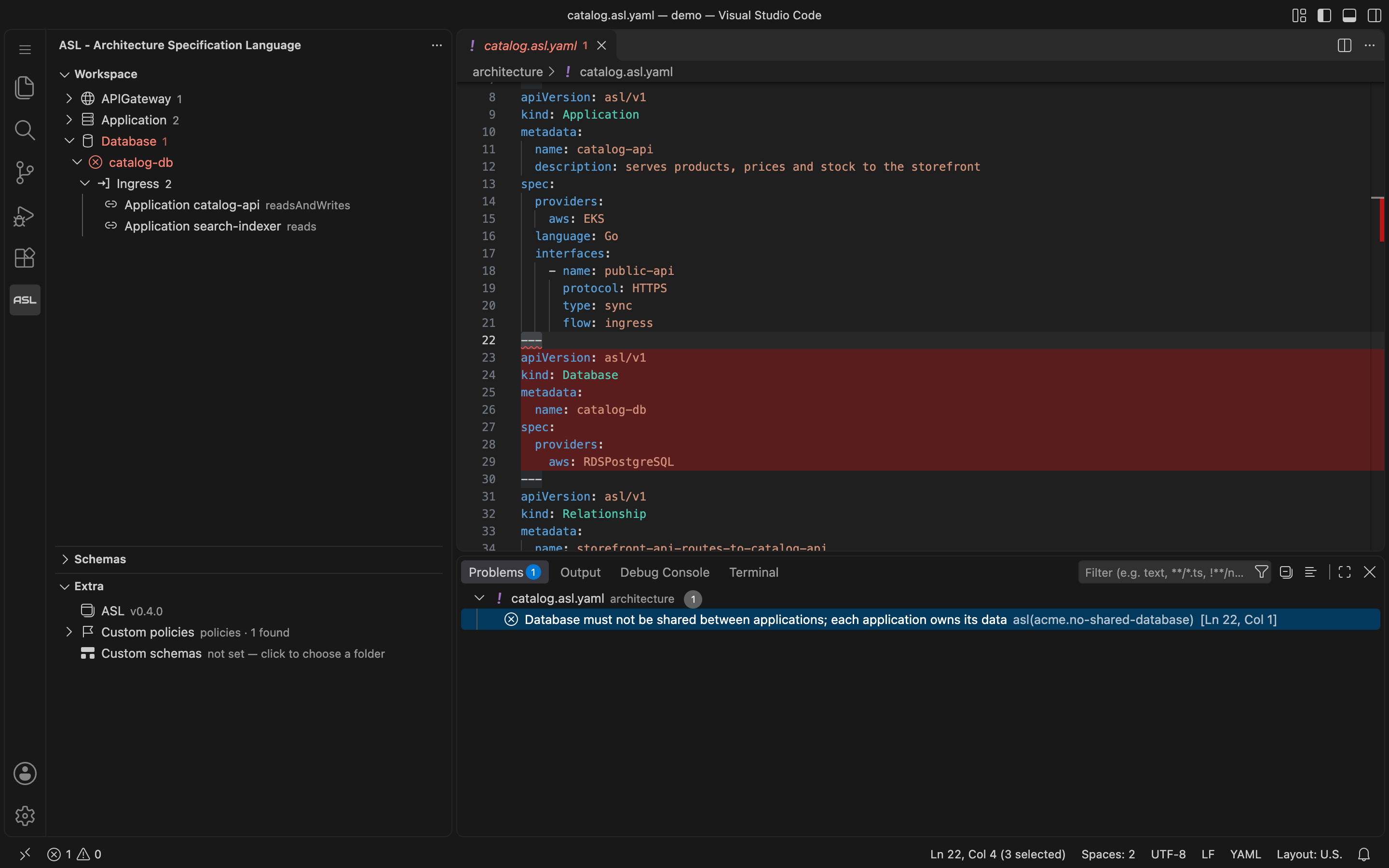
- the offending line is underlined, with the message and the policy name on hover;
- the whole manifest gets a red background (yellow for a warning), and the scrollbar shows a mark;
- the same problem appears in the Problems panel;
- in the ASL panel, the resource, the connection and its kind turn red (or yellow).
The checks run when you open the folder, whenever you edit a manifest and whenever you save. A custom policy you change is picked up on save. Nothing to configure.
Kind icons
Each kind has an icon in the panel: a server for Application, a database for Database, a megaphone for Topic, and so on. A kind of yours that does not define one shows a ?, and the Schemas view tells you which ones.
To choose the icon, add x-asl-codicon-icon to the top of the kind's definition, with the name of any icon from the VS Code icon list:
x-asl-codicon-icon: organization
allOf:
  - $ref: ../../asl/v1/Manifest.yaml
  - type: object
    required: [spec]
    properties:
      apiVersion:
        const: acme/v1
      kind:
        const: Team
      spec:
        type: object
        additionalProperties: false
        required: [email]
        properties:
          email:
            type: string
unevaluatedProperties: false
The icon is stored with the definition, so everyone who loads your bundle sees the same one. The asl command ignores this line.
Settings
| Setting | Meaning |
|---|---|
asl.policiesBundlePath | A file or folder with your custom policies. A relative path is resolved from the workspace folder. |
asl.schemasBundlePath | A folder of custom schemas, laid out as <group>/<version>/<Kind>.yaml. |
The Extra view writes both settings for you.